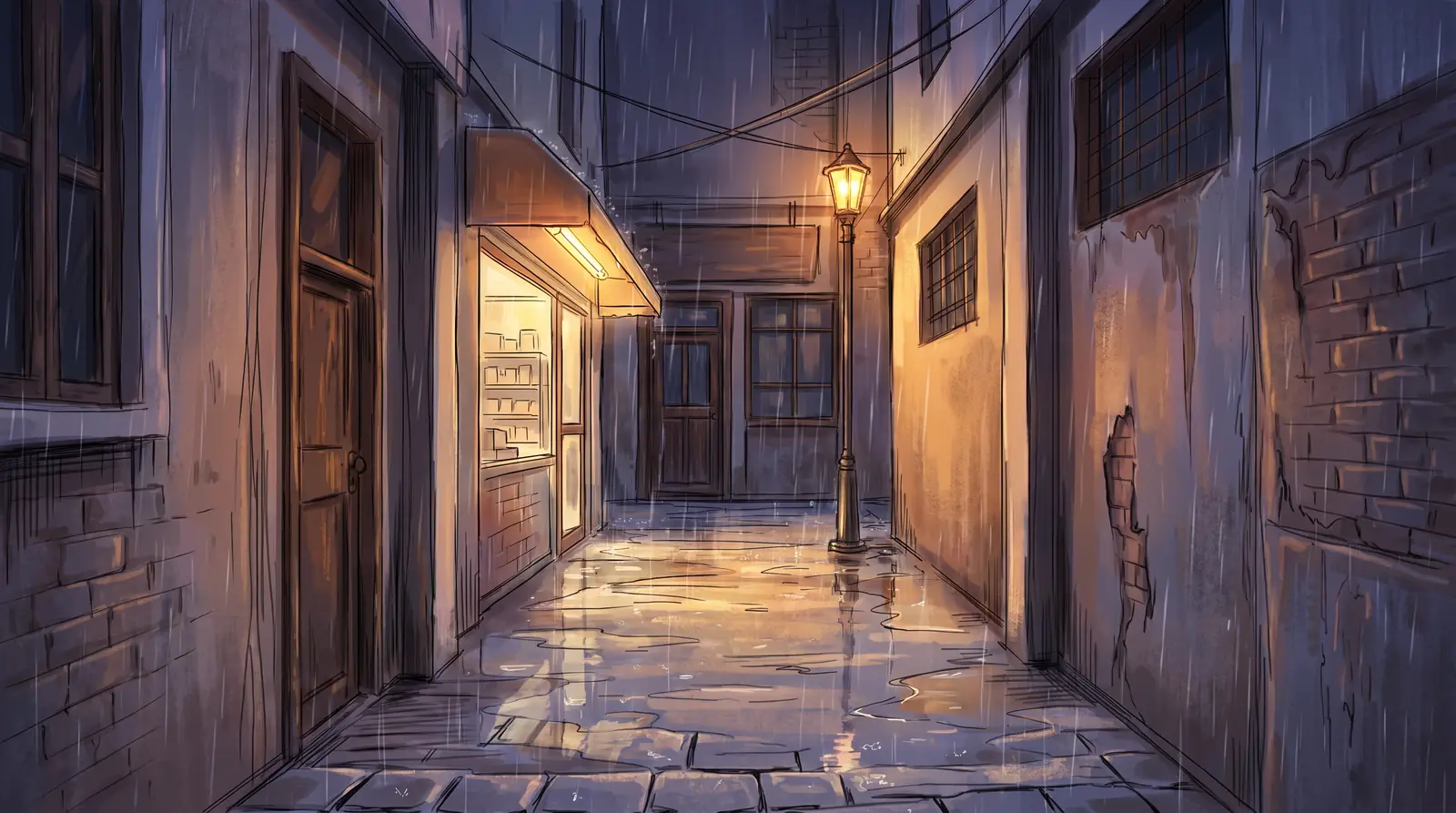
ComicYour characters keep
the same face in every panel.
Lay out the panels, write the dialogue.
Your cast comes straight from your story world.
- Free
- No credit card
- No sign-up to lay out pages
Lay out the panels,
then let your characters speak
Storyboard your comic in the browser. Panels, reading order, and speech bubbles are all set on the same page.
Pick a layout
From 2 to 7 panels, two-page spreads, or a vertical strip. Apply one, and anything already written in your panels stays, in order.
Reshape panels, read right to left or left to right
Drag a corner to slant a panel, click an edge to add a point, or turn a panel into a circle. A dashed blue line shows the order readers follow.
Put the dialogue in speech bubbles
Write who says what, and it appears in that panel as a speech bubble, thought bubble, caption box, or sound effect.
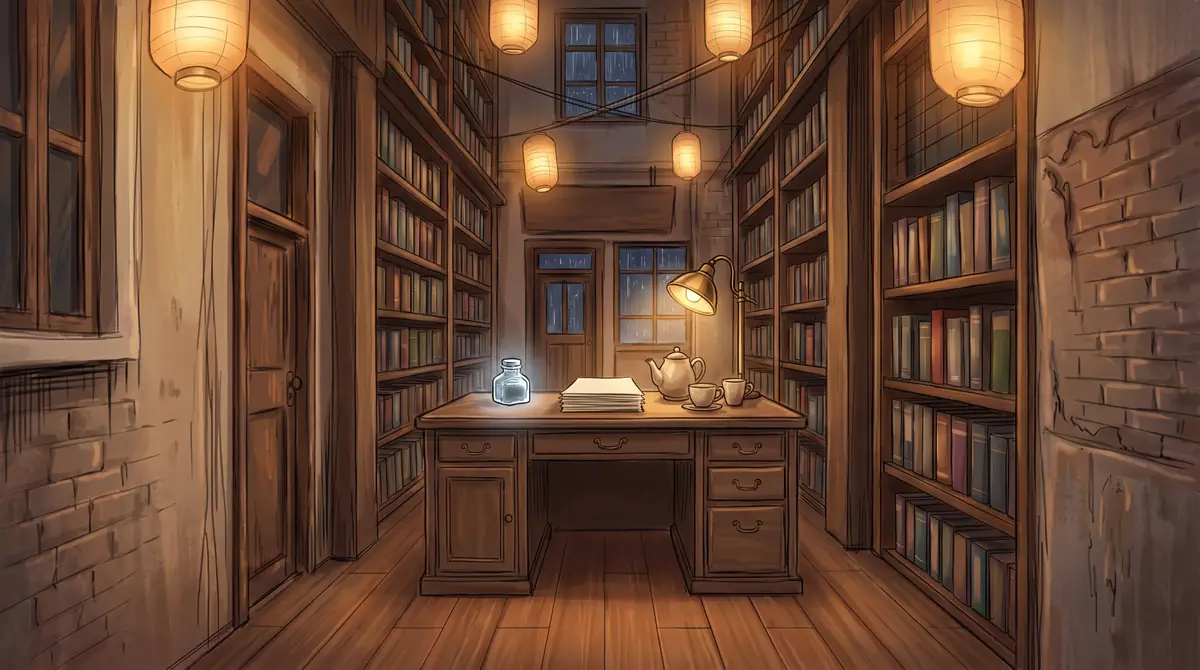
Your cast steps in from your world,
the same face in every panel
The characters you wrote in your novel appear in your comic as they are: their looks, clothes, and personality match their character cards.
Bring your world's characters into this comic
Drag them in from your world's character list; their reference sheets come along.
The reference sheet is how they look
When a panel is drawn, each face follows its own sheet.
Same faces, cover to cover
Four pages, a dozen-plus panels: Mo Ling and Su Yan look the same throughout.
From one line of plot
to finished, full-color pages
Write what happens on the page, then draw it panel by panel: rough, line art, screentone, color. Any step can be your own art instead.
Write the plot, get a panel draft
Describe what happens on the page, then pick your cast and panel count. You get a draft of panels, shots, and dialogue, and every panel stays editable.
Rough → line art → screentone → color
Set the composition with a rough, then work it up step by step into line art, screentone, and color. Every step stays editable.
Mix and match: AI art and your own
Upload art you made in other software at any stage, and it sits on the same page as the panels AI drew.
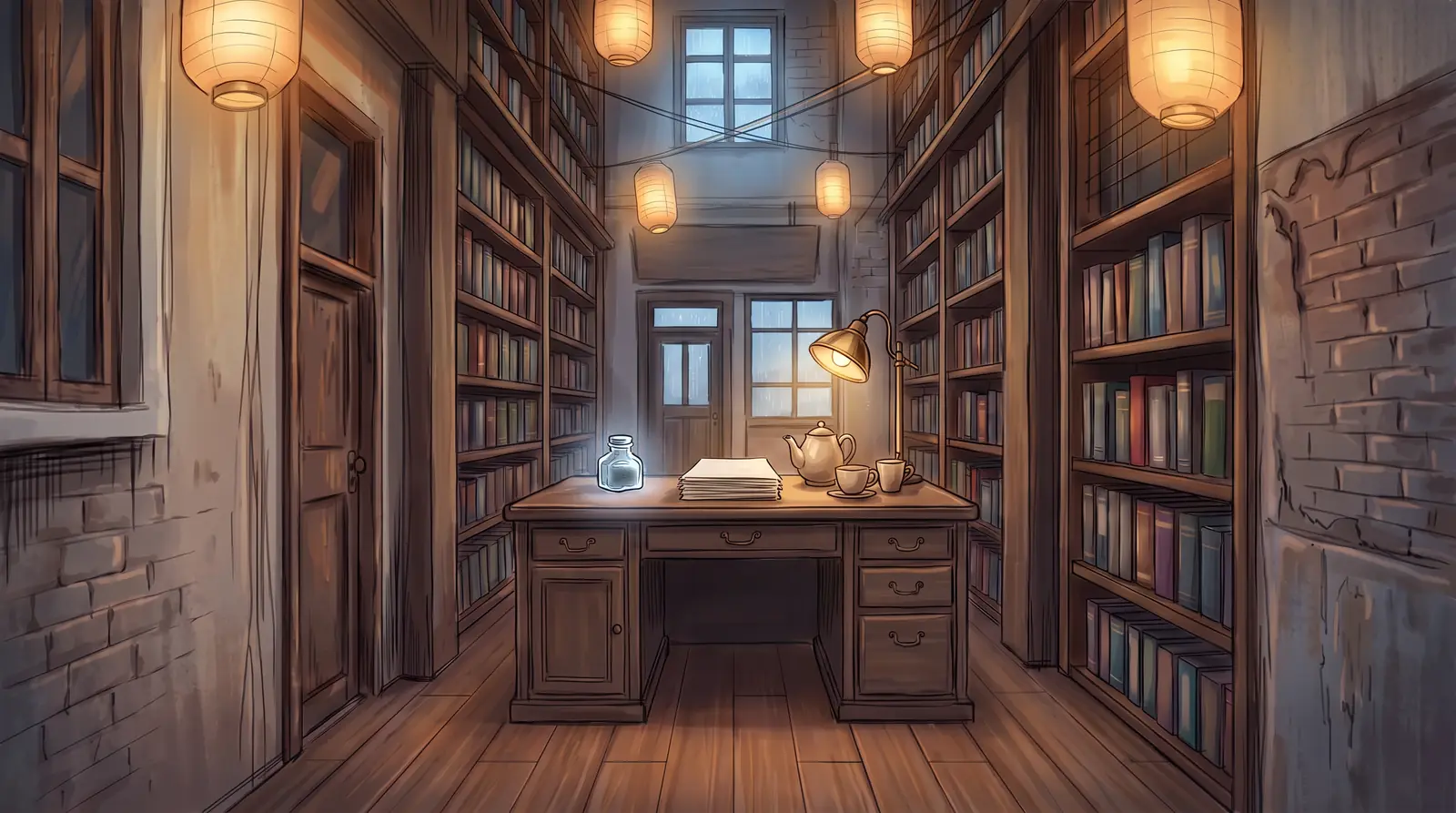
The same world,
as a novel or a visual novel too
Characters, places, and foreshadowing all live in one world. Draw this scene as a comic, write it as a novel, or turn it into a visual novel where readers choose their route.
- ComicPanels and dialogueEvery character keeps the same face in every panel.
- NovelTake your time in wordsYour notes sit right beside the manuscript.Write it as a novel
- Visual novelA story with choicesSprites and backgrounds are ready to go.Make it a visual novel
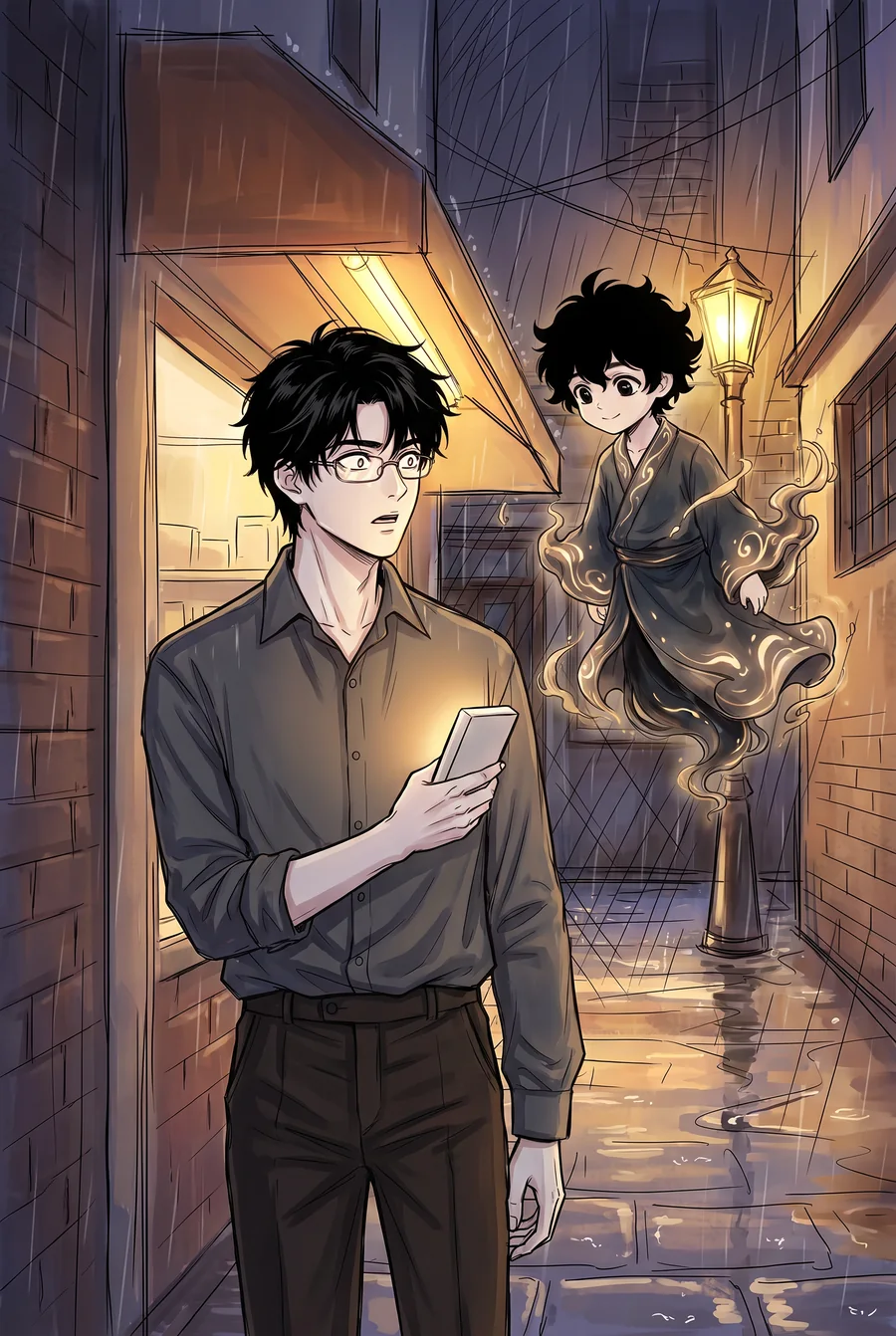
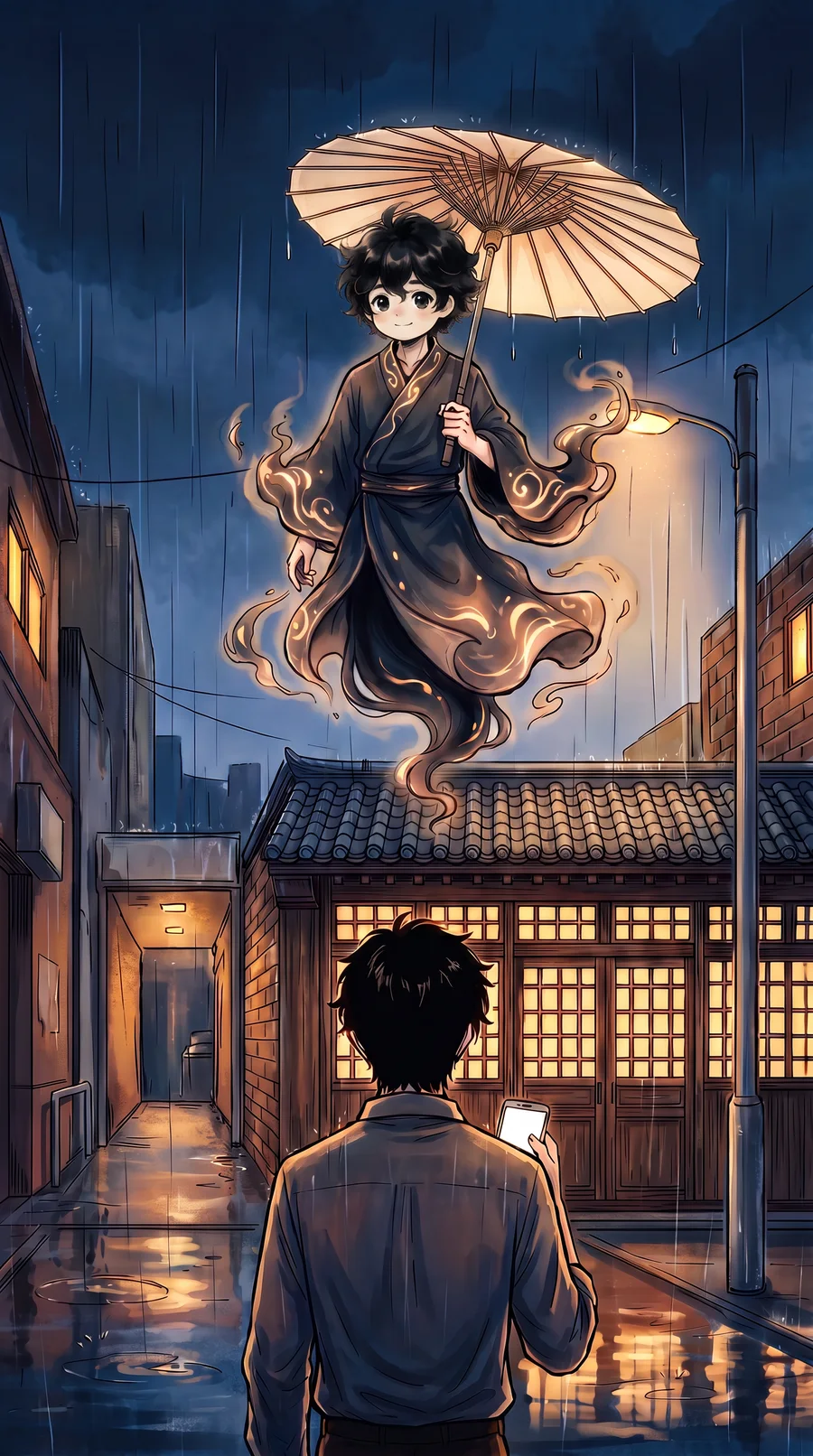


One world, one character: Mo Ling
A finished comic,
serialized for readers or yours to take anywhere
Publish to the LitMemo library, where readers follow along and comment on each episode. Or export the files and go back to the software you know.
01 Serialize in the library
Publish episode by episode, and followers are notified of each new one.
02 Export PSD, PDF, or CBZ
Take the layered PSD back into other software to keep refining it; the finished PDF and CBZ are ready to use.
How to make a comic: from storyboard to finished pages
All you need is a story. In LitMemo, it takes four steps.
1. Write the plot
Who, where, what happens. Characters and places come from your world.2. Storyboard
Apply a layout or draw your own panels, then write the dialogue.3. Draw it
AI draws panel by panel, or you upload your own art.4. Serialize or export
Publish to the library, or export PSD, PDF, or CBZ.
FAQ
Can I make a comic if I can't draw?
Yes. Panels and dialogue need no drawing: pick a layout, write the lines, and the pages are laid out. After you sign up, AI draws each panel from your characters' reference sheets.
Is it a free comic maker?
Laying out pages and writing dialogue is free, with no sign-up. AI drawing needs an account and uses credits: roughs and line art work on the free plan; screentone and color are paid-plan features.
Can I use art I drew in other software?
Yes. You can upload your own image at every stage of every panel, and import finished storyboard pages in bulk. When you're done, export a layered PSD and keep refining it in the software you already use.
Which formats can I export?
Layered PSD, finished-page PDF, CBZ, and a storyboard PDF. Finished-page PDF, CBZ, and PSD exports are paid-plan features; your first export is free in every format.
Can I make comics on my phone?
Yes. Lay out pages and write dialogue right in your phone's browser, no app to install.
Can I publish my comic as a series?
Yes. Publish it in the LitMemo library and update it episode by episode. The finished PDF is ready for submissions too.